


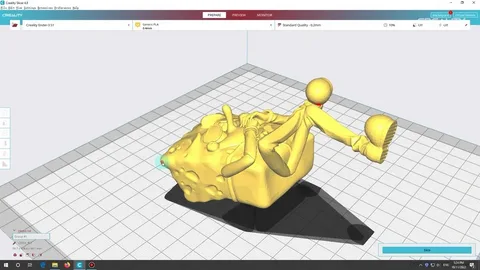
Top Creality Slicer Tips to Boost Print Quality Fast
3D printing success often depends less on the printer itself and more on how well you prepare your model for printing. One of the most important tools in this process is Creality Slicer, a popular slicing software designed to turn 3D models into printable instructions. Whether you are a beginner or an experienced maker, learning how to optimize your settings can dramatically improve your print results.
In this guide, you will discover practical and easy-to-apply tips that help you get cleaner surfaces, stronger models, and fewer print failures. These strategies focus on real adjustments inside creality slicer that you can apply immediately to see better performance.
Optimize Layer Height for Smoother Prints
Layer height is one of the most critical settings in creality slicer, as it directly affects the surface quality of your print. A smaller layer height (such as 0.12mm or 0.16mm) produces smoother surfaces, while a larger layer height (like 0.24mm) prints faster but with visible layer lines. Choosing the right balance depends on your project needs.
For detailed models or aesthetic prints, always prioritize lower layer heights. For functional parts, a slightly thicker layer can save time without sacrificing too much strength. Adjusting this simple setting can instantly elevate your print quality.
However, reducing layer height also increases print time, so you must find a balance. In creality slicer, experimenting with incremental adjustments is the best way to discover the ideal setting for your specific printer and filament type.
Another important factor is nozzle size. If you’re using a standard 0.4mm nozzle, avoid going too low with layer height (below 0.08mm), as it may cause under-extrusion issues. Always match your slicer settings with your hardware capabilities for best results.
Adjust Print Speed for Better Stability
Print speed plays a huge role in how well your printer handles complex designs. In creality slicer, reducing print speed often leads to better adhesion, smoother curves, and fewer printing errors. While fast printing is tempting, it can compromise accuracy.
For detailed models, slowing down to 40–60 mm/s can significantly improve quality. Slower movement allows the printer to place each layer more precisely, reducing vibrations and misalignment.
On the other hand, too slow printing can sometimes cause overheating or stringing in certain filaments. That’s why it’s important to fine-tune speed settings based on material type, especially PLA, PETG, or ABS.
creality slicer allows you to customize different speeds for walls, infill, and supports. Using slower speeds for outer walls and faster speeds for infill is a smart way to balance quality and efficiency.
Fine-Tune Retraction Settings to Prevent Stringing
Stringing is one of the most common 3D printing issues, and it usually happens when filament leaks while the print head moves. Proper retraction settings in creality slicer can solve this problem effectively.
Retraction distance and speed are the two key settings. Increasing retraction distance slightly (for example, 4–6mm for Bowden setups) helps pull filament back before travel moves, reducing unwanted strands.
Retraction speed is equally important. If it’s too slow, stringing may still occur; if it’s too fast, it can grind filament. Finding a balanced speed ensures smoother transitions between different print areas.
Additionally, enabling “Z-hop when retracted” in creality slicer can prevent the nozzle from dragging across printed surfaces, further reducing surface defects and improving overall finish quality.
Improve Bed Adhesion with Proper First Layer Settings
The first layer is the foundation of any 3D print. If it fails, the entire model is likely to fail. In creality slicer, adjusting first layer settings can significantly improve adhesion and reduce warping.
Increasing first layer height slightly (e.g., 0.2–0.28mm) helps the filament stick better to the build plate. A slower first layer speed also ensures proper bonding.
You should also increase the first layer line width. This allows the filament to spread more firmly on the bed surface, creating a stronger base for the rest of the print.
Another helpful tip is enabling a brim or raft in creality slicer for prints with small contact surfaces. These features increase stability and help prevent corners from lifting during long prints.
Use Support Settings Wisely for Clean Overhangs
Supports are necessary for complex models, but poorly configured supports can ruin surface quality. creality slicer offers advanced support settings that help you balance structure and easy removal.
Start by adjusting support density. Lower density supports are easier to remove and reduce surface damage, while higher density provides stronger support for difficult overhangs.
Support interface layers are especially useful. They create a smoother separation between the model and supports, improving the final surface finish when removed.
You can also choose between tree supports and normal supports in creality slicer. Tree supports are ideal for organic or detailed models because they use less material and touch the model more gently.
Conclusion
Improving your 3D print quality does not always require expensive upgrades; often, it simply comes down to smarter slicing decisions. By fine-tuning settings like layer height, print speed, retraction, bed adhesion, and supports in creality slicer, you can dramatically enhance your printing results.
Each printer and filament behaves differently, so experimenting with these settings is key. With consistent adjustments and practice, creality slicer becomes a powerful tool that helps you achieve faster, cleaner, and more reliable prints every time.


Leave a Reply